Shutting Down Your PC Every Night Seems Like the Right Thing to Do. But Is It Really?
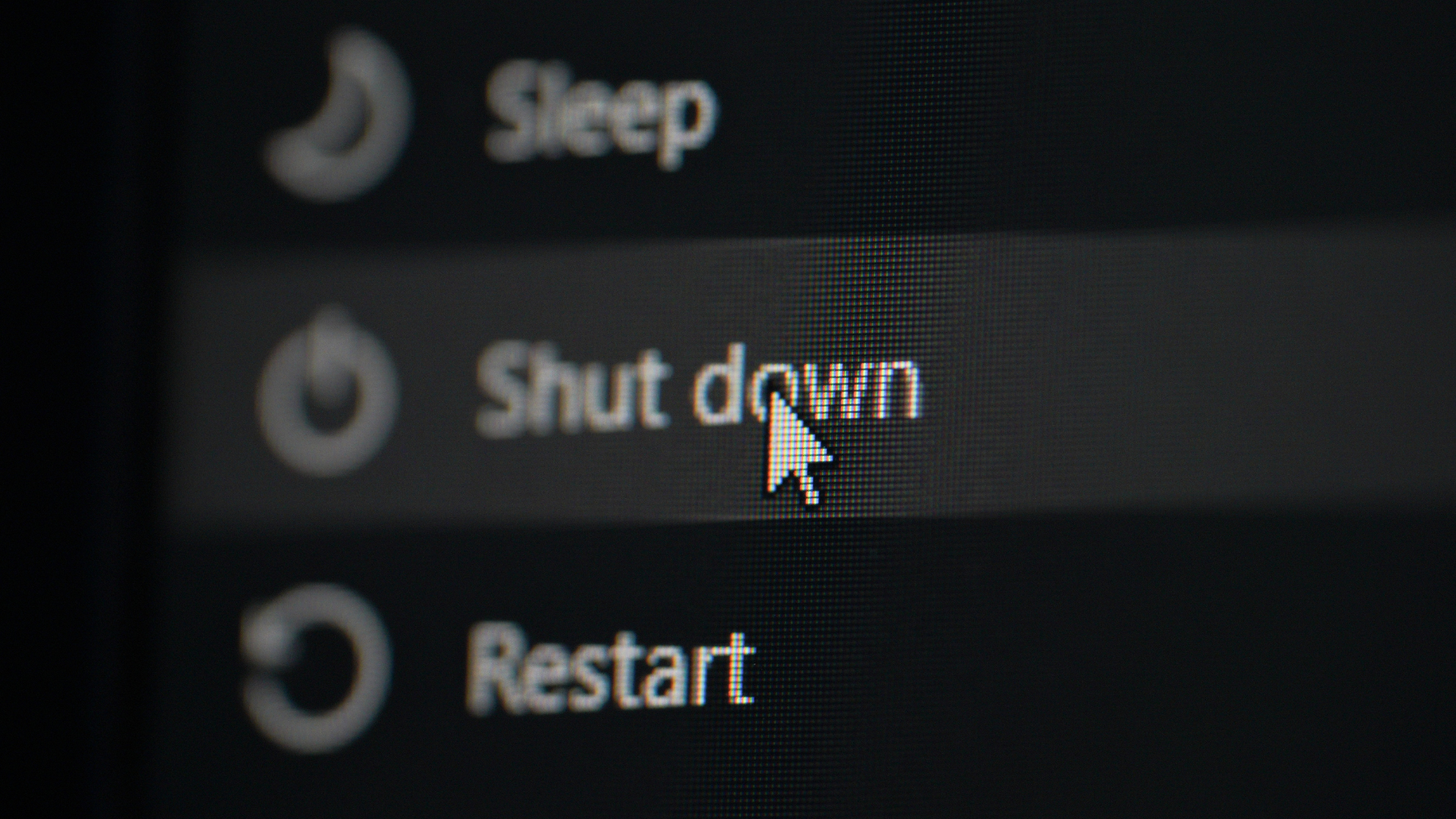

For years, shutting down a computer at the end of every day has felt like the responsible thing to do, but modern PCs make the decision less clear-cut. Windows offers sleep, hibernate, restart, and full shutdown because each serves a different purpose, and leaving a computer in sleep mode overnight does not automatically harm it. The better choice depends on how soon you plan to use the PC again, whether it needs updates or troubleshooting, and how much you value instant access versus completely powering the machine down.
Sleep Mode Is Designed for Short Breaks
Sleep mode does not completely turn the computer off, but it reduces power consumption considerably while keeping your session ready to resume. Microsoft recommends sleep when you will be away from the PC for a relatively short period because it lets you return to open programs and files almost immediately. That convenience means there is little reason to perform a complete shutdown every single time you step away from a computer during the day.
Leaving a PC Asleep Overnight Isn’t Automatically Bad for It

A computer does not need to be completely shut down every night simply to protect its modern components. Sleep is an intentional Windows power state that uses very little electricity while allowing the machine to wake much faster than it would from a full shutdown. For someone who uses the same computer every morning, putting it to sleep at night can therefore be a reasonable choice, particularly when quickly returning to unfinished work is more useful than starting from scratch.
A Full Shutdown Still Has Its Advantages
There are still plenty of situations where shutting down makes sense, especially if the PC will not be used for an extended period. A complete shutdown eliminates the small amount of power required by sleep mode and gives users a clean stopping point rather than leaving an active session suspended indefinitely. It can also be useful before hardware changes, travel, or simply whenever there is no reason for the computer to remain immediately available.
Restarting Can Be More Useful Than Shutting Down
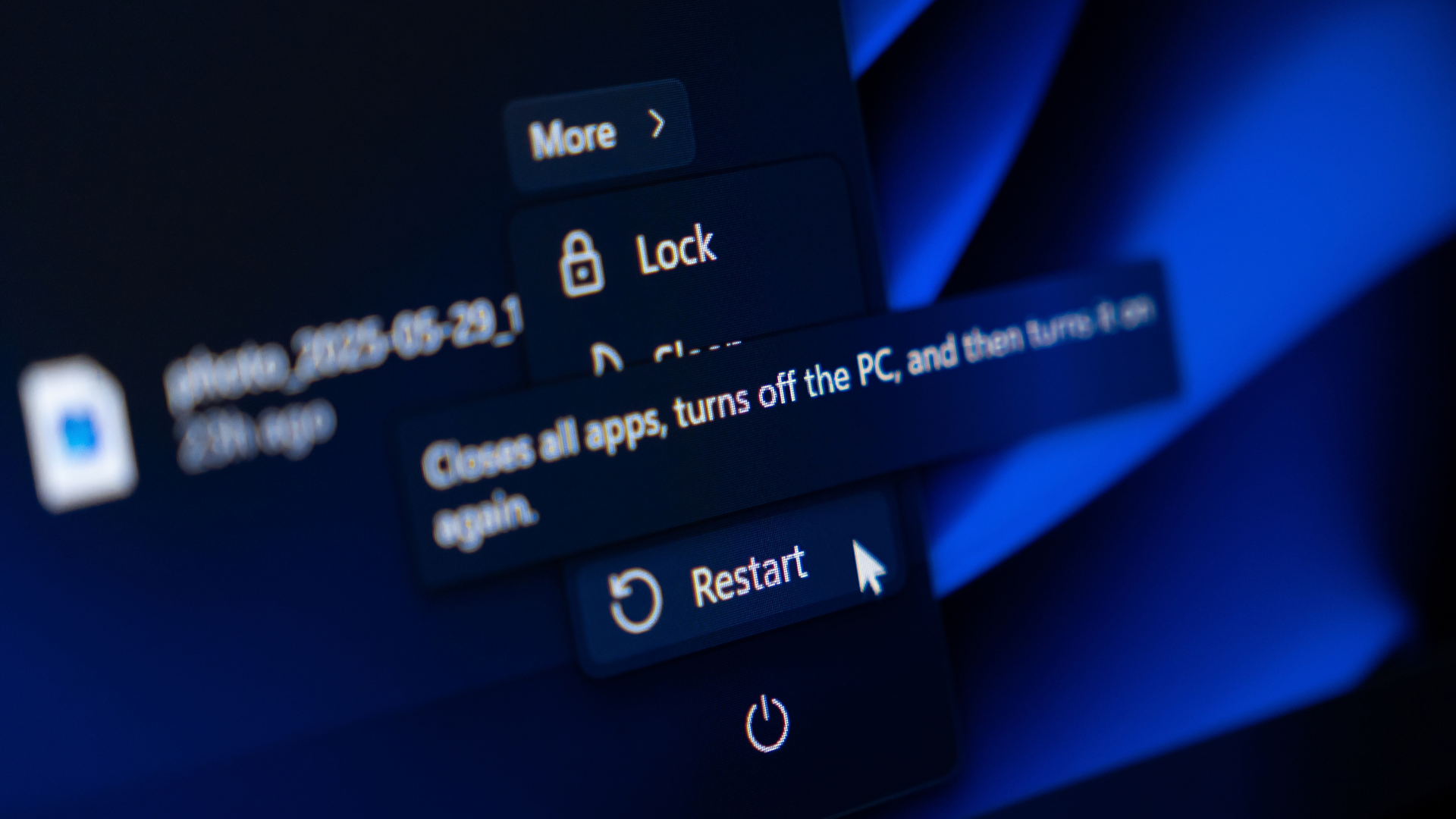
If the goal is fixing a sluggish or misbehaving PC, clicking Restart may actually be more useful than relying on a routine nightly shutdown. Microsoft specifically recommends restarting when performance remains poor after unnecessary programs and browser tabs have been closed, and restarting can also resolve certain hardware, driver, or software problems. Windows Fast Startup can make shutdown and startup behave differently from a traditional complete reboot on some systems, which is another reason Restart remains an important troubleshooting tool.
Updates Are Another Reason Your PC Needs a Restart
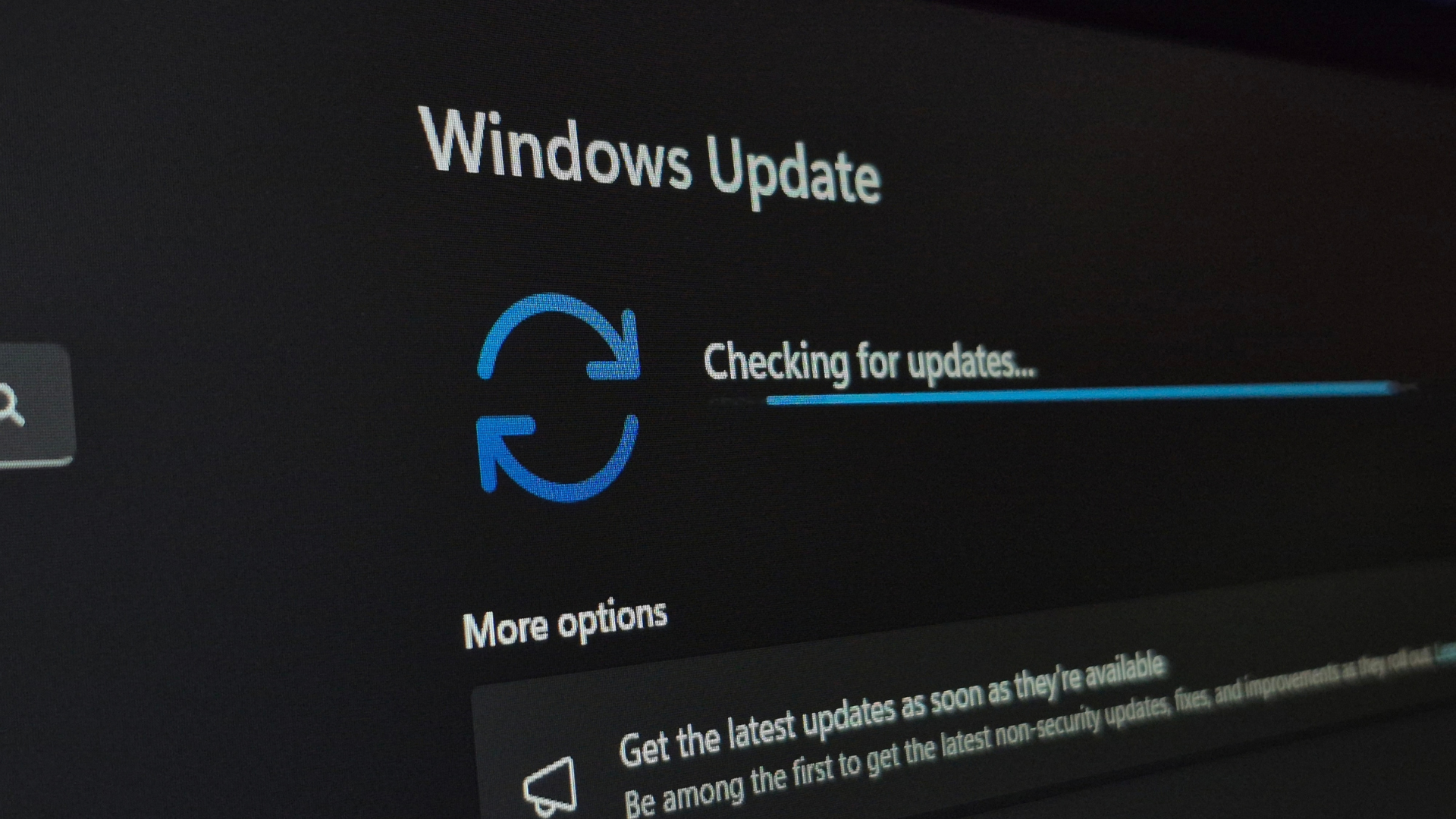
Windows regularly downloads security, reliability, and feature updates in the background, and some cannot finish installing until the computer restarts. Microsoft changed the Windows 11 update process in 2026 so updates requiring a reboot can increasingly be grouped with the monthly security update, reducing the number of interruptions users face. That makes regularly allowing the PC to complete requested restarts more important than following an arbitrary rule that it must be shut down every night.
Hibernate Offers a Middle Ground for Longer Breaks

Hibernate is another option that often gets overlooked, particularly by laptop owners. It saves the current session while consuming less power than sleep, allowing users to return to their previous work without keeping the computer in the same low-power state throughout a long break. Microsoft recommends considering hibernation when a laptop or tablet will not be used for an extended period and charging may not be available, although the feature is not offered on every PC.
Constant Uptime Can Occasionally Lead to Annoying Problems
Keeping a computer running or repeatedly sleeping it for long stretches can preserve everything happening in the current Windows session, including processes that are not behaving properly. Users may eventually encounter slow performance, malfunctioning peripherals, or other software issues that disappear after a restart. Microsoft notes that devices such as monitors, printers, and scanners that stop working correctly after waking from sleep or hibernation may need to be reconnected or the PC restarted, reinforcing the value of occasionally starting fresh.
Your Routine Matters More Than Following One Universal Rule

Someone who uses a computer repeatedly throughout the day may find sleep far more practical than constantly shutting down and reopening everything, while someone leaving for several days has little reason to keep the machine sleeping. Hibernate can work well for longer laptop breaks, and Restart is useful when Windows needs updates or the computer begins behaving strangely. Instead of treating one power option as universally correct, Microsoft’s guidance reflects the fact that these modes exist for different situations.
You Don’t Need to Shut Down Every Night, but Don’t Forget to Restart

For most modern PCs, shutting down every single night is not a requirement for keeping the machine healthy, and using sleep overnight can be perfectly reasonable when the computer will be needed again soon. What matters more is occasionally giving Windows the restart it needs for updates and troubleshooting, while using a full shutdown or hibernation when the machine will sit unused for longer stretches. In other words, the best habit is not automatically clicking Shut Down at bedtime, but choosing the power mode that actually fits how and when you use your computer.